A Professional Guide for E-commerce Clothing Photo Editing
In today’s competitive e-commerce market, product presentation can make or break a sale. For fashion brands and online clothing stores, ghost mannequin images have become the industry standard. They present garments in a clean, three-dimensional form without showing mannequins or models—creating a professional, distraction-free shopping experience.
In this detailed guide, we’ll explain how to creating the ghost mannequin effect in Photoshop, using professional techniques applied by expert clipping service providers. This workflow is ideal for fashion brands, photographers, and online retailers who want consistent, high-quality product images.
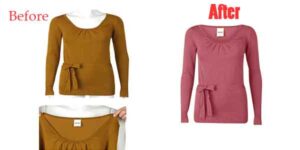
Why Ghost Mannequin Images Are Essential for E-commerce
Ghost mannequin photography is more than just image editing—it’s a conversion-focused visual strategy.
Benefits of Ghost Mannequin Effect:
-
Displays clothing in a natural 3D shape
-
Eliminates distracting mannequins or pins
-
Highlights garment structure, fit, and stitching
-
Creates a premium and consistent product catalog
-
Increases buyer confidence and reduces return rates
Professional ghost mannequin editing helps customers visualize how the clothing would look when worn—without using live models.
Step 1: Correct the Garment Shape Using Liquify
The first and most important step in how to creating the ghost mannequin effect in Photoshop is correcting the garment’s shape.
During photoshoots, fabric often appears:
-
Slightly bent
-
Uneven on one side
-
Wrinkled or flattened
How to Fix Shape Issues:
-
Go to Filter → Liquify
-
Select a soft round brush
-
Gently push the edges of the shirt to balance both sides
✔ Use subtle adjustments
❌ Avoid aggressive distortion, which looks unrealistic
This step ensures the garment looks naturally worn and well-fitted.
Step 2: Create a Precise Outline with the Pen Tool
A clean outline keeps your editing accurate and symmetrical.
Professional Outline Method:
-
Use the Pen Tool to trace one side of the garment
-
Copy the path
-
Flip it horizontally
-
Paste it on the opposite side
This technique saves time and ensures perfect symmetry.
Make the Outline Visible:
-
Right-click → Make Selection
-
Go to Edit → Stroke
-
Apply a 1–2 pixel stroke
This visible guide helps maintain balance throughout the editing process.
Step 3: Outline and Prepare the Collar Area
The collar is a critical focal point in ghost mannequin editing.
Steps:
-
Use the Pen Tool to trace the collar
-
Convert the path into a selection
-
Apply a 1–2 pixel stroke
This collar outline ensures clean mannequin removal and realistic neck blending later
Step 4: Final Shape Refinement Using Liquify
Reopen Liquify and use the outline as a reference.
-
Push the fabric edges gently to align with the outline
-
Make small, controlled movements
-
Zoom in and out to check realism
This step creates a polished, high-end garment shape.
Step 5: Isolate the Shirt into a Separate Layer
Now separate the garment from the background.
Process:
-
Select the shirt using the outline
-
Apply a slight feather
-
Press Ctrl + J to duplicate
-
Hide the original layer
This creates a clean, editable shirt layer—essential for professional ghost mannequin work.
Step 6: Remove the Mannequin from the Neck Area
The mannequin is usually still visible inside the collar.
How to Remove It Cleanly:
-
Use the Pen Tool to outline the mannequin portion only
-
Make a selection
-
Apply feather
-
Press Delete
Precision here ensures the shirt blends naturally later.
Step 7: Clean Edges with Clone Stamp
After removal, refine the edges:
-
Use the Clone Stamp Tool
-
Smooth rough transitions
-
Match fabric texture around the neckline
This step is critical for realism and quality control.
Step 8: Insert and Align the Inner Neck
Professional ghost mannequin editing uses a separately photographed neck or back panel.
Steps:
-
Import the neck image
-
Position it accurately behind the collar
-
Make a selection around the neckline
-
Remove excess areas outside the outline
This creates the illusion that the shirt is worn—without showing a mannequin.
Step 9: Add Realistic Depth with Drop Shadow
To make the neck appear naturally inside the shirt:
-
Select the shirt layer
-
Apply a Drop Shadow
-
Adjust opacity, distance, and softness
-
Mask unwanted shadow areas
This subtle depth makes the final image look realistic and professional.
Step 10: Remove Wrinkles Using Frequency Separation
To achieve a clean, premium finish, professionals use Frequency Separation.
Why Use Frequency Separation?
-
Removes wrinkles without damaging texture
-
Separates color and detail layers
-
Maintains stitching and fabric realism
This technique is standard in professional clothing photo retouching services.
Quality Control for Ghost Mannequin Images
Before final delivery, professionals check:
-
Symmetry and balance
-
Clean edges
-
Natural shadows
-
Consistent lighting
-
Fabric texture preservation
This ensures images meet e-commerce marketplace standards.
Why Choose Professional Ghost Mannequin Services?
While learning how to creating the ghost mannequin effect in Photoshop is valuable, outsourcing ensures speed, consistency, and quality.
Professional Services Offer:
-
Expert pen tool masking
-
Advanced retouching techniques
-
Bulk image processing
-
Fast turnaround time
-
Marketplace-ready images
For brands handling hundreds or thousands of images, professional services save time and cost.
Photoshop ghost mannequin tutorial Photo Ghost Mannequin is a very important service. Here is the complete video link.
Ghost Mannequin Editing for E-commerce Platforms
Optimized ghost mannequin images are perfect for:
-
Shopify
-
Amazon
-
WooCommerce
-
Etsy
-
Magento
-
Brand websites
Clean, consistent visuals increase trust and conversions across all platforms.
Final Thoughts
Understanding how to creating the ghost mannequin effect in Photoshop is essential for modern fashion e-commerce. This technique transforms simple garment photos into professional, conversion-focused visuals that attract buyers and strengthen brand identity.
Whether you’re a photographer, clothing brand, or online retailer, ghost mannequin editing is a powerful tool—and professional execution makes all the difference.
 Clipping Path Service